
🔑 Reset your ScreenConnect Password
Everyone’s done it. The password was lost and not saved to the password manager. When that happens with ScreenConnect, the password can be reset.
- Access your work email. If needed, sign into https://outlook.office.com or use your mobile phone to access.
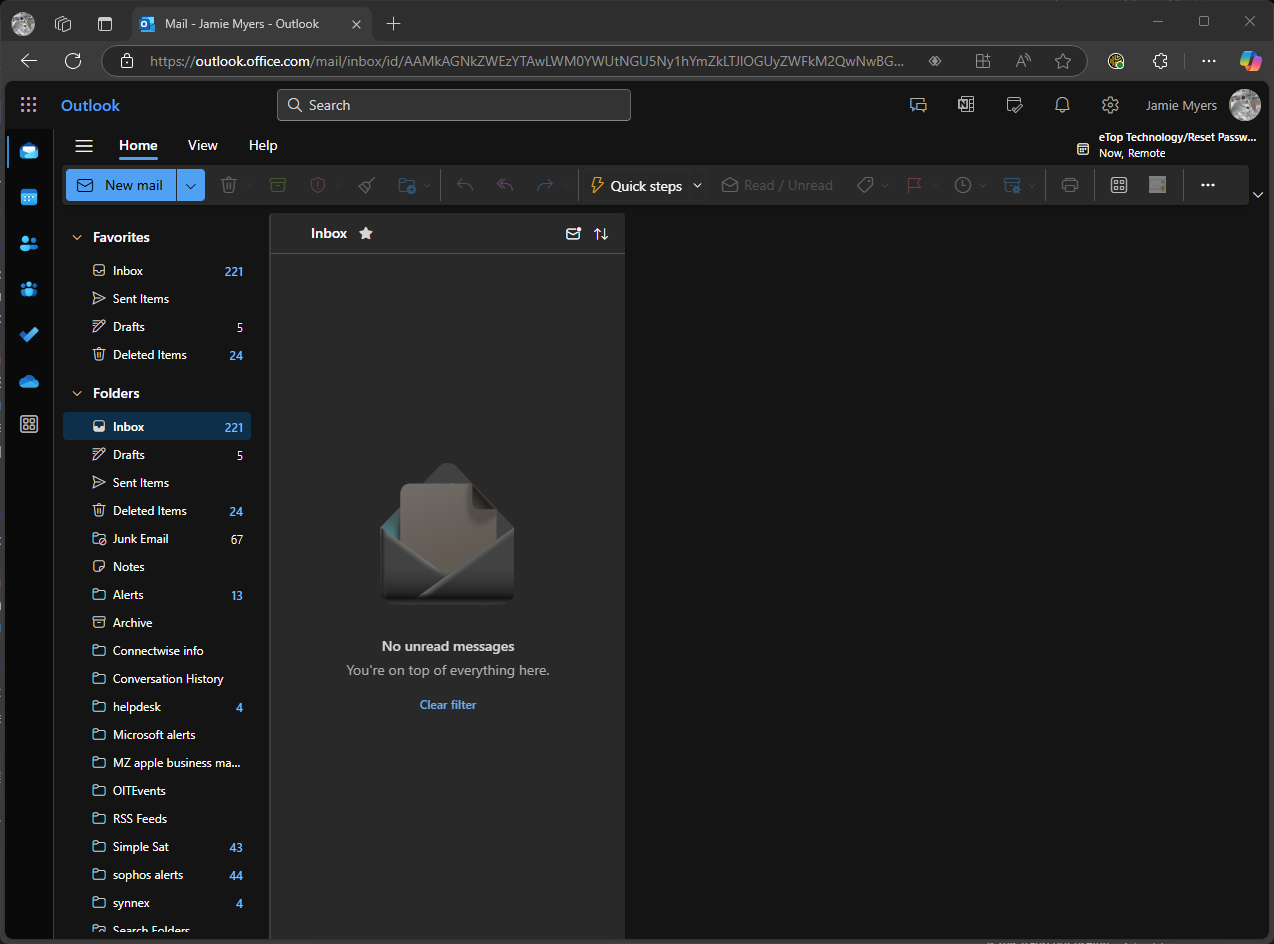
- In another tab or window, access https://etopclient.screenconnect.com
%20(1).png)
- Click Login at the top right, then “Forgot Password”
.png)
- On the Reset Password screen, enter your work email address, then click “Get Reset Code”
.png)
- Switch back to your email. You should have an email from cloud@screenconnect.com with information on the request and a reset code. Copy the reset code.
.png)
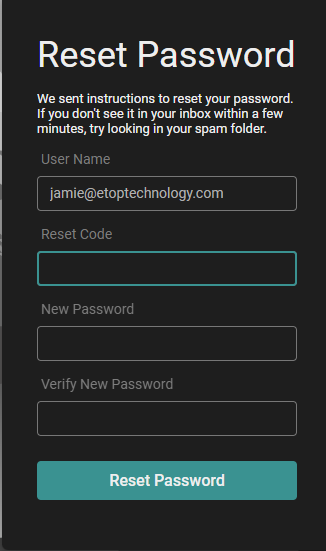
- Switch back to the ScreenConnect page. Put in the code from the email in the “Reset Code” blank, then set and verify a new password. Click “Reset Password.”
NOTE: please save your new ScreenConnect password securely to your password manager.
- Once done, log into ScreenConnect with your work email and new ScreenConnect password. You will be prompted to enter a code (One-Time Password) that will be sent your work email to complete login. Select the checkbox to “Trust this device for 7 days” if that applies to your situation.
.png)
You have now successfully reset your ScreenConnect password and logged in!
\